How to use Automate
Guide, video and answers · Automate 1.1 for Chrome
Automate records what you do on a website — clicks, typing, dropdowns, new tabs — and does it again for you, with one click or on a schedule. No code, no account, and everything stays on your computer.
Install
Add Automate from the Chrome Web Store, then click the puzzle-piece icon at the top right of Chrome and the pin next to Automate, so it is always one click away. Click the icon (or press Alt + Shift + A) and the Automate panel opens beside the page you are on.
Step by step
-
Record
Open the website you want to automate, then click Start recording in the panel and use the site as you normally would. Every click, entry, choice and new tab appears as a step, in plain words. Click Stop recording when you are done and give the recording a name at the top.
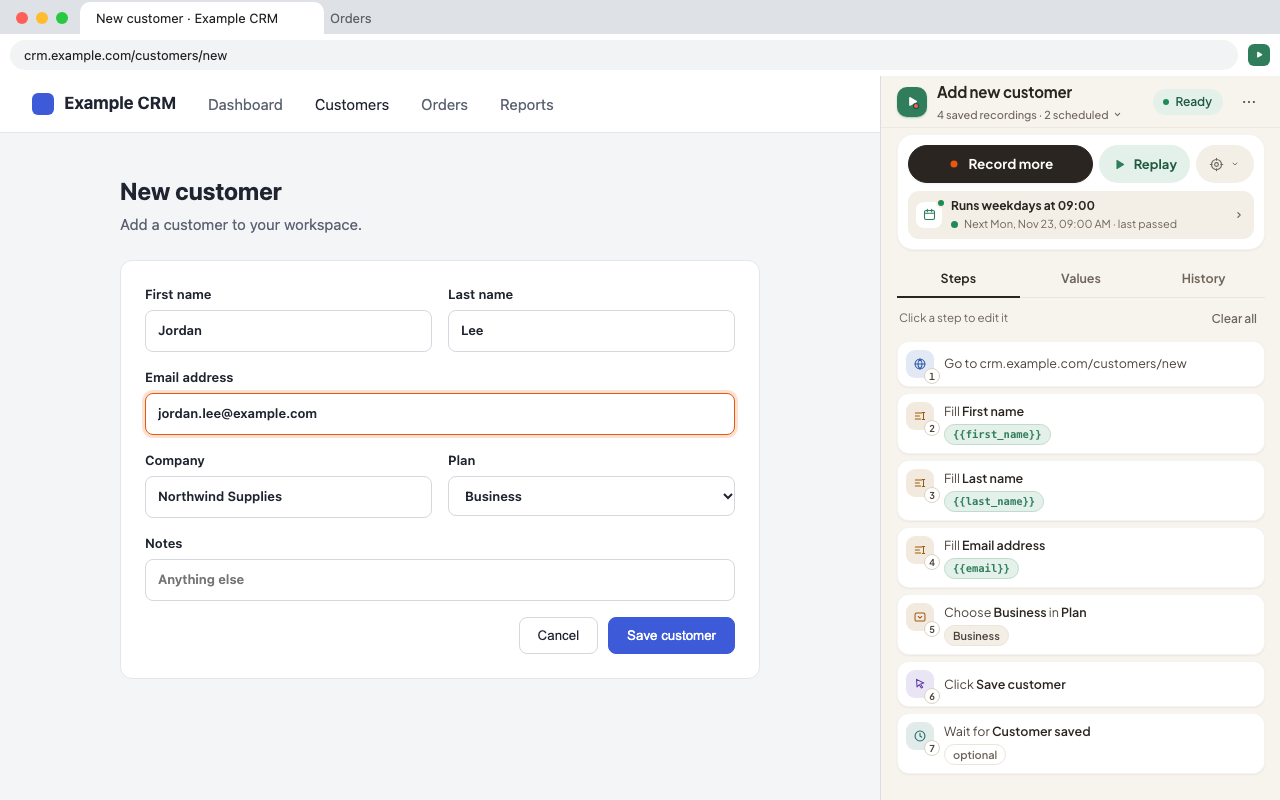
Each action becomes a step you can read: “Fill First name”, “Choose Business in Plan”, “Click Save customer”. -
Replay
Click Replay to run every step in the tab you are on. Steps turn green as they work. To run part of it, hover a step and use ▶ (just this step) or ⋯ → Run up to here.
Recorded something extra? Click Record more to add steps at the end, or the + between two steps to record new ones exactly there.
-
Change a step
Click any step and its editor opens right under it: change what it types, how long it waits for the page, what to answer if the page pops up a dialog, or how it finds the element (Advanced). Press Save, or Cancel / Esc to leave it as it was.
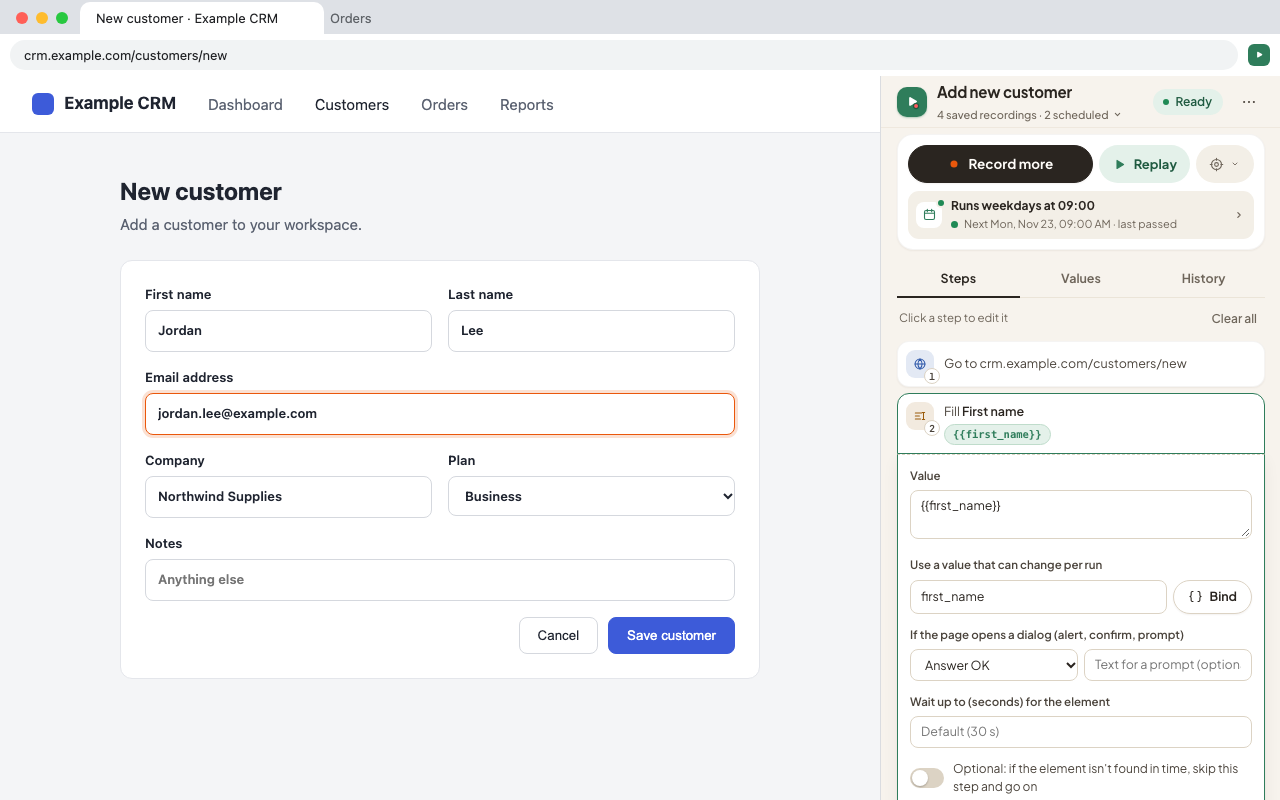
The editor opens in the list, so you can still see the steps around it. -
More step actions, and optional steps
Hover a step and click its ⋯ for everything else:
- Make optional — if its element doesn't appear in time, the step is skipped and the replay goes on. Perfect for cookie banners and pop-ups that only show sometimes.
- Skip this step — leave it out of every replay without deleting it.
- Move up / Move down, Re-record this step, Repeat steps from here (loop), and Delete (with Undo).
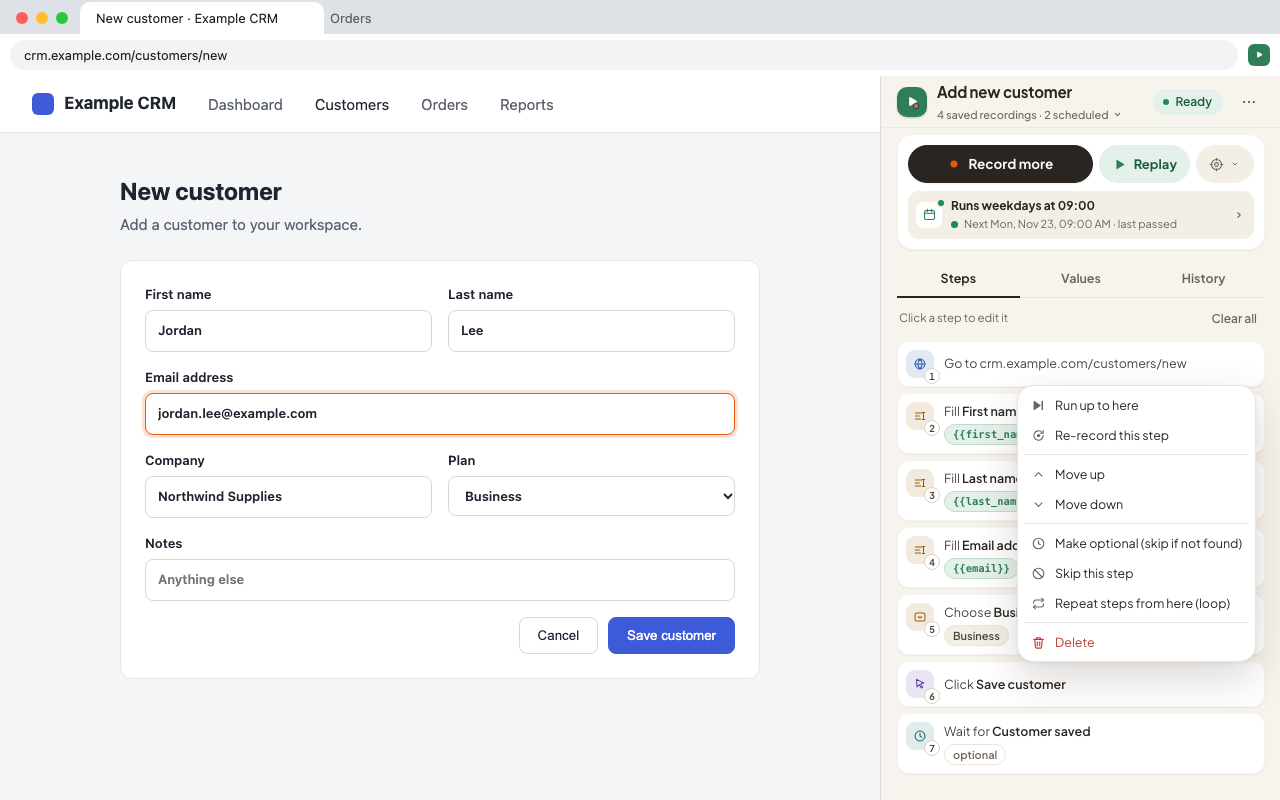
Steps that only open or switch tabs don't need Optional, so they don't offer it. -
Values that change per run
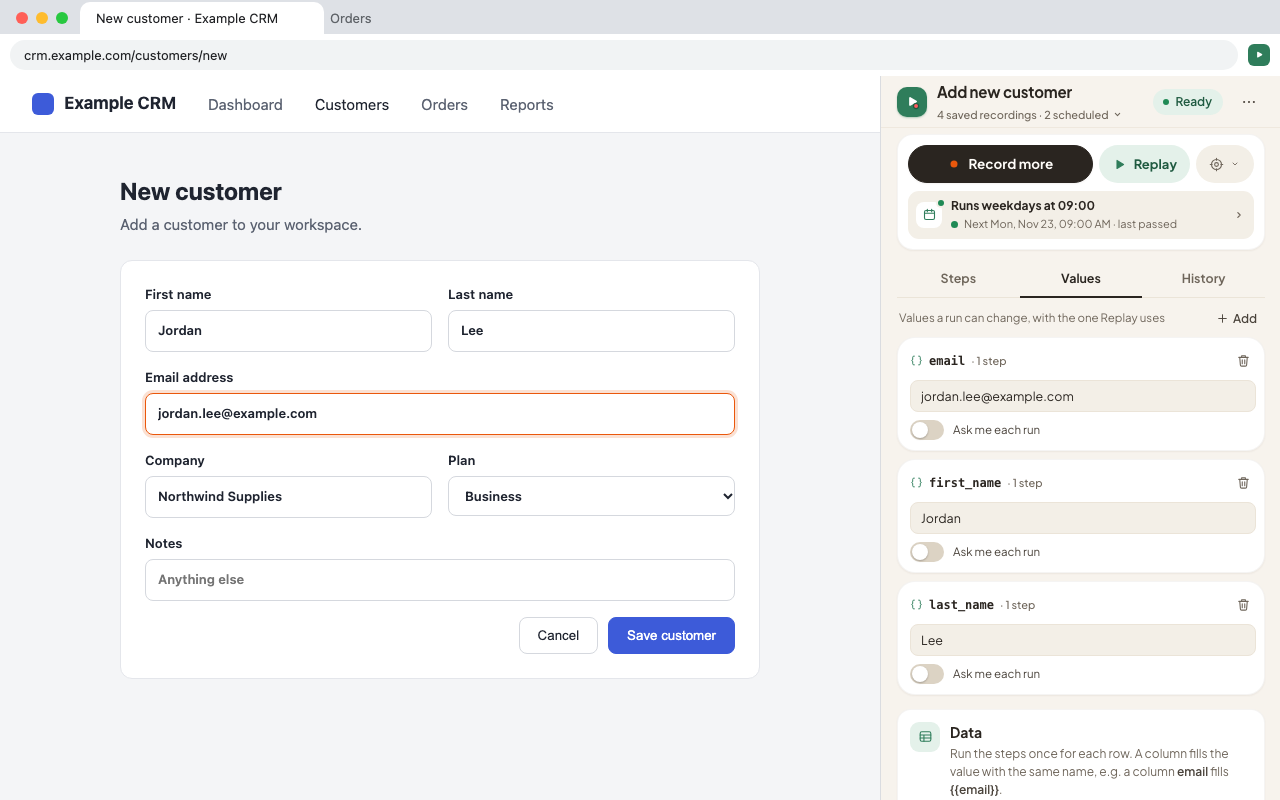
Anything a step types can become a value — a search term, a date, a customer name. Click the step and use Bind, or ⋯ → Make it a value you can change. Values are listed on the Values tab; change one there and the next replay uses it.
For passwords and anything you would rather not save, turn on Ask me each run: Automate asks for it every time you replay and never stores it.
-
Run it for every row of a spreadsheet
On the Values tab, paste rows from Excel or Google Sheets (with a heading row) or import a CSV into Data. A column fills the value with the same name. Then click Run for each row, or use a step's ⋯ → Repeat steps from here to choose which steps repeat: sign in once, add 200 customers, sign out once. A failed row is noted and the run goes on; download the results as a CSV at the end.
-
Capture from the page
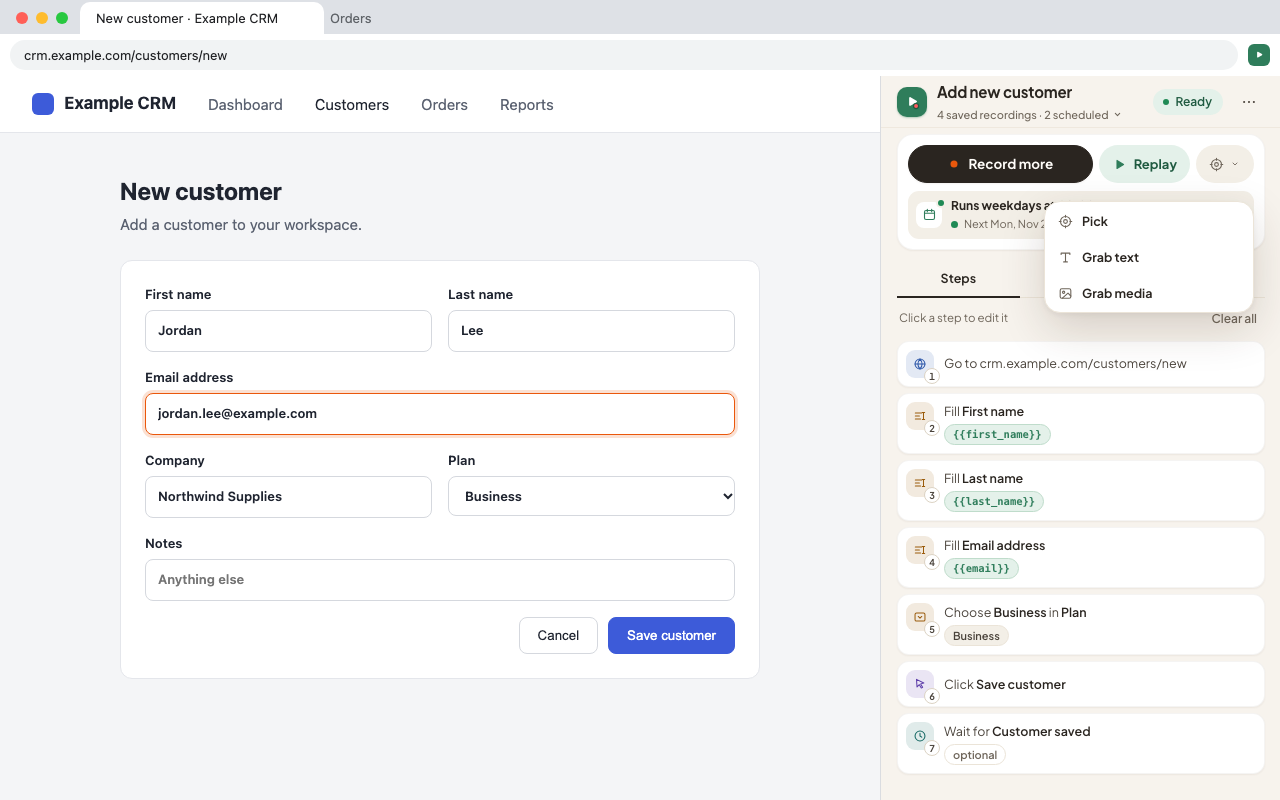
Capture ▾, next to Replay, has three tools:
- Pick — point at an element and the replay will wait for it.
- Grab text — click any text to save it as a value on every run (a price, an order number). Later steps can type it with
{{name}}. - Grab media — click an image, video or file link to save it to your Downloads on every run.
-
Put it on a schedule
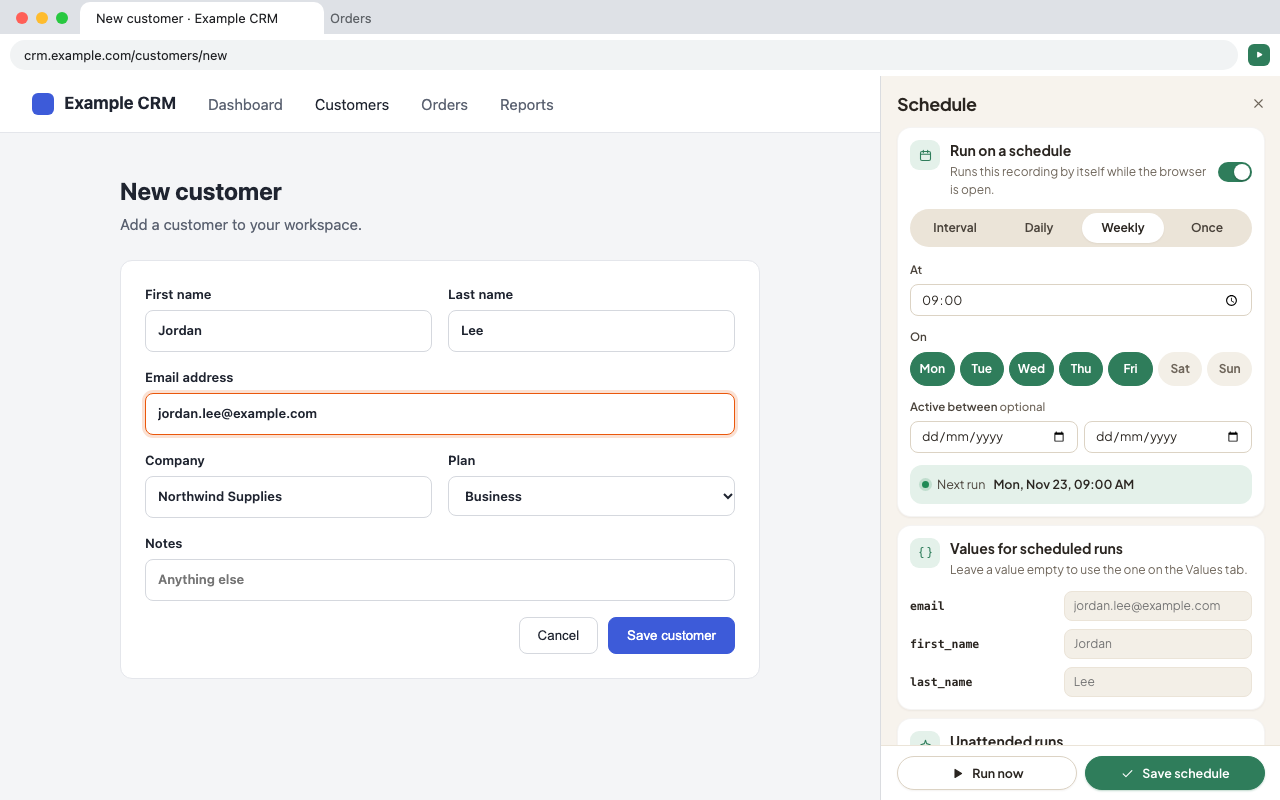
The line under Record and Replay says when a recording runs by itself — click it (it says Not scheduled at first) to open its Schedule. Choose every few minutes or hours, daily at a time, on chosen weekdays, or once, then Save schedule. Run now starts it straight away.
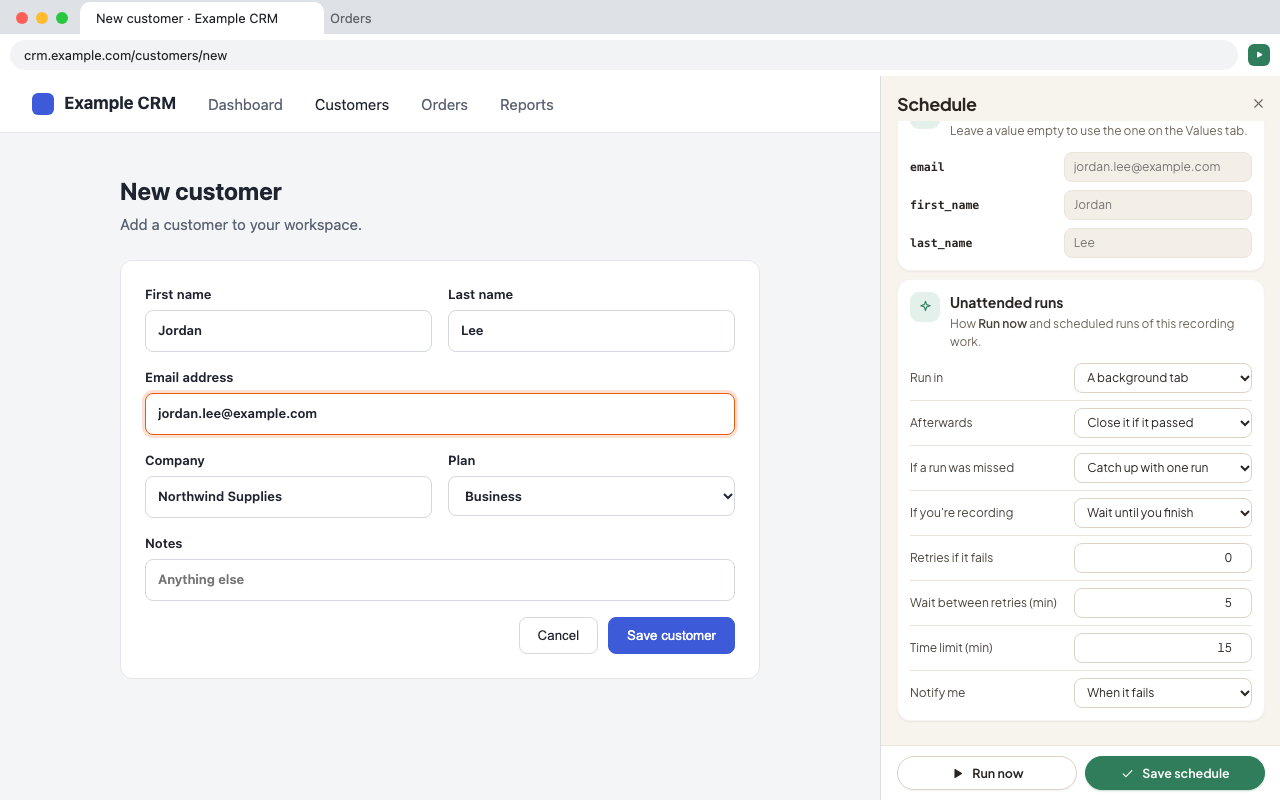
Further down, Unattended runs sets how those runs behave: in a background tab or a minimized window, close the tab afterwards, what to do with a run that was missed while Chrome was closed, retries, a time limit, and when to notify you.
-
See every run, and what went wrong
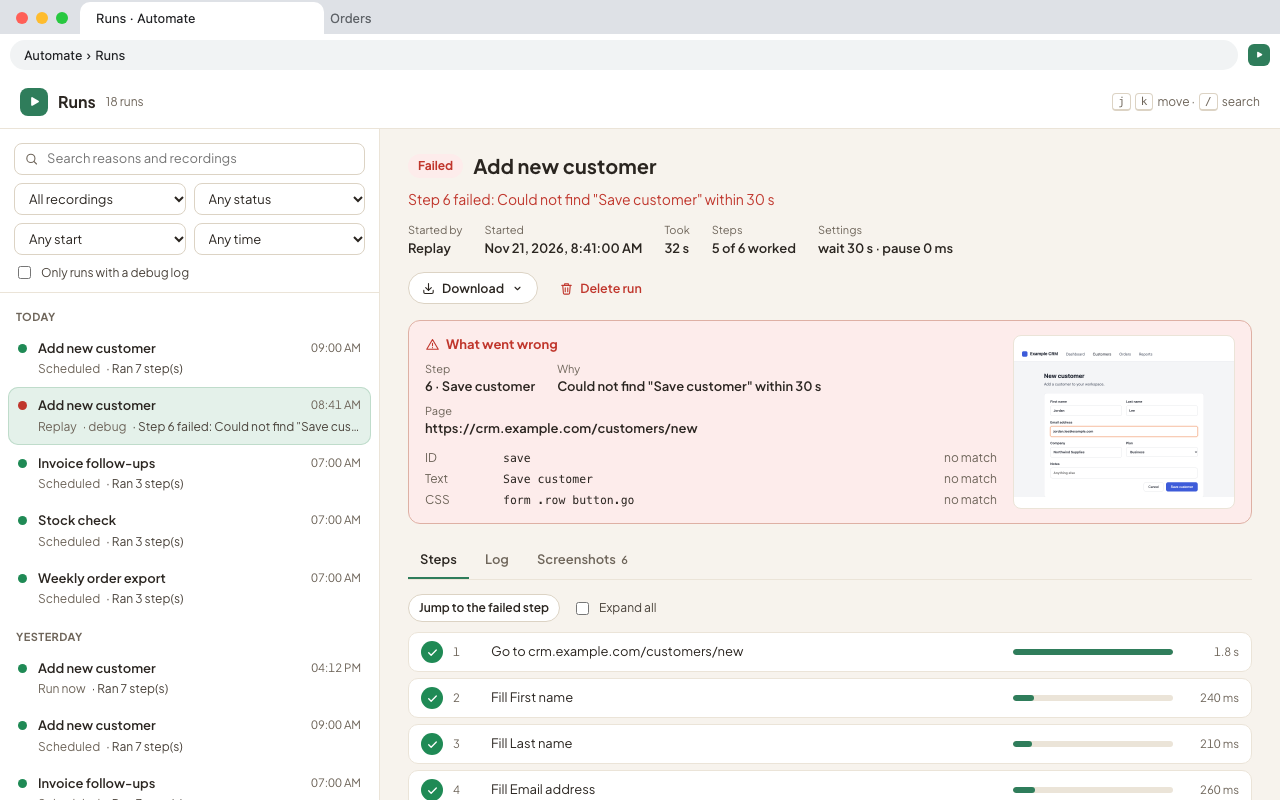
The History tab lists every run of the recording — replays, Run now and scheduled ones — with its pass rate and how long runs take. Click a run, or All runs ↗, to open the Runs page: every run of every recording, with search and filters.
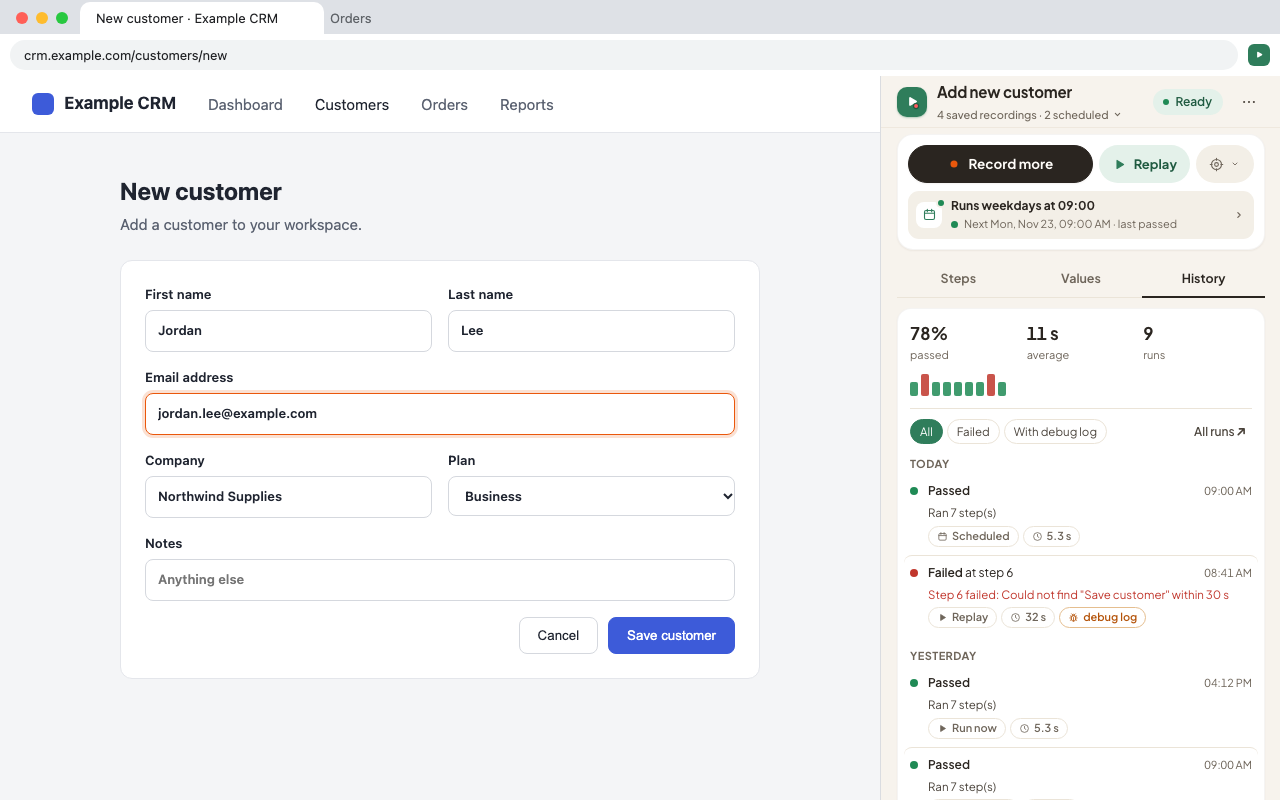
When a run fails, the Runs page shows what went wrong: the step, how each way of finding the element did, the page address and a picture of the page.
-
Debug mode and the recording's settings
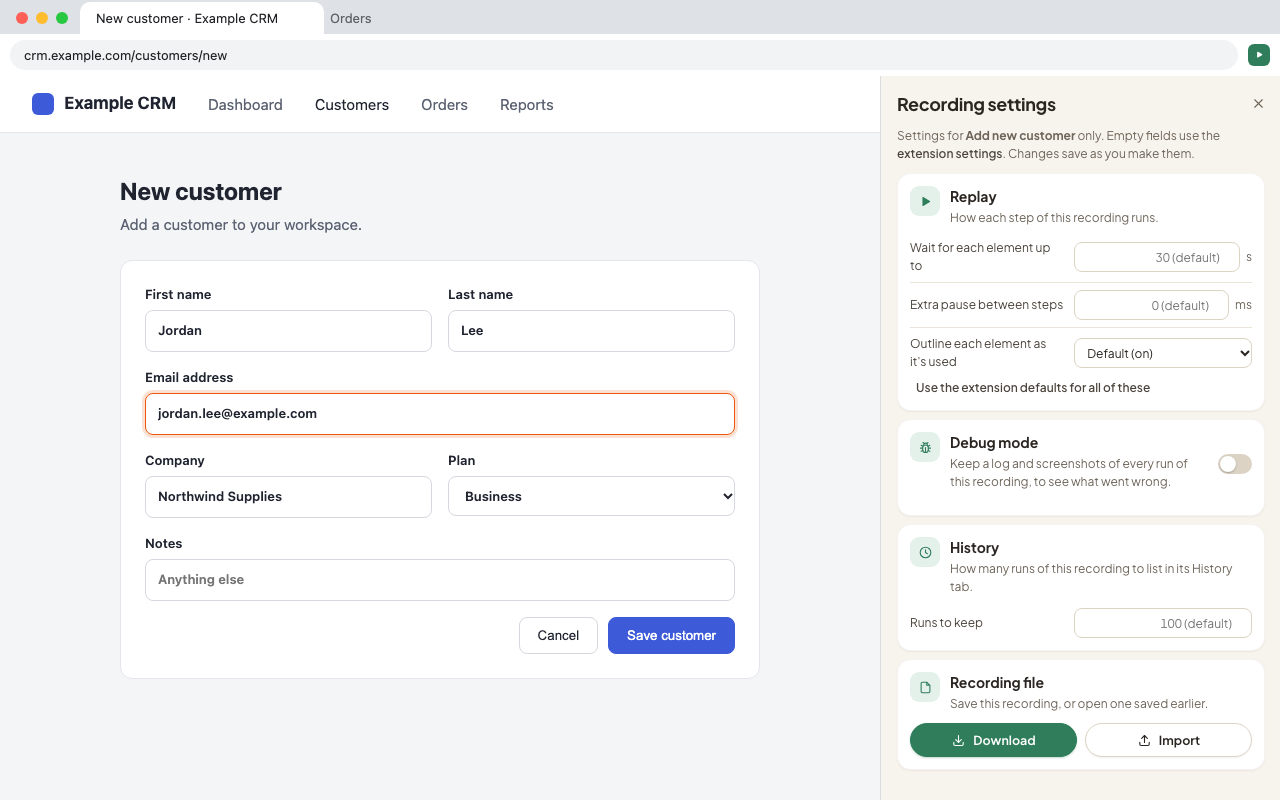
The ⋯ at the top right of the panel opens Recording settings: how long this recording waits for each element, an extra pause between steps, and Debug mode, which keeps a step-by-step log and a screenshot after every step of its runs (see them on the Runs page). It can also pause before every step so you can watch it work.
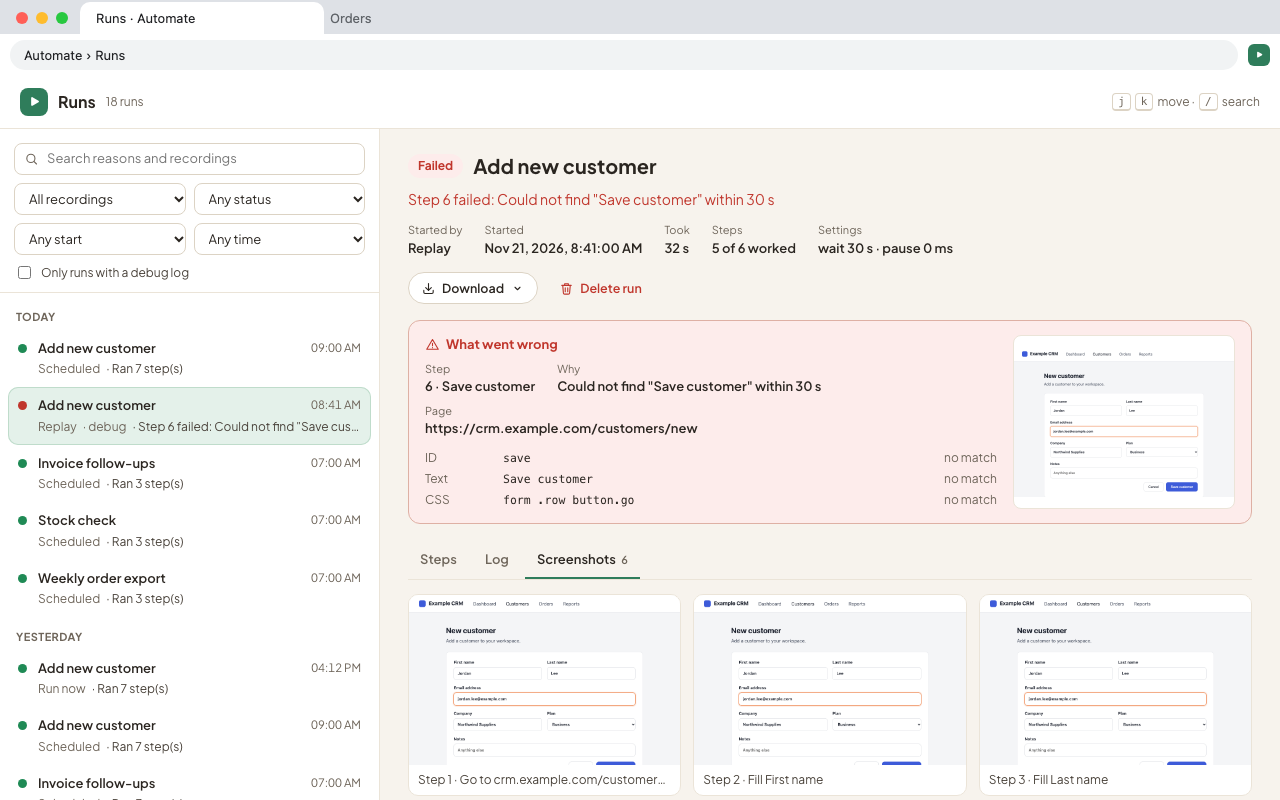
With debug mode on, each run keeps a picture of the page after every step. -
Your recordings
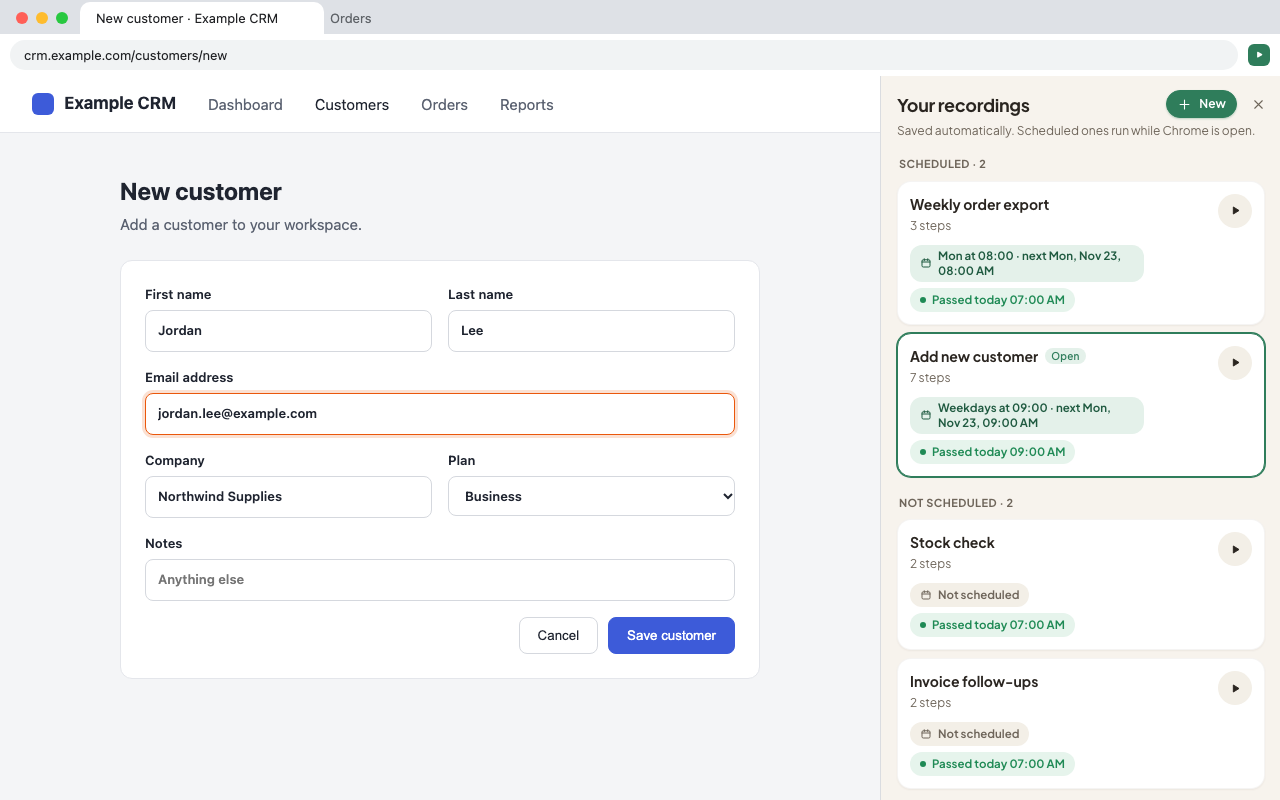
Every recording is saved automatically. Click the line under its name (N saved recordings ⌄) to see them all, scheduled ones first, and to start a New one, run, duplicate or delete them. ⋯ → Extension settings has your defaults for every recording, Back up all / Restore, light or dark appearance, and Delete all data.
Frequently asked questions
Does my data leave my computer?
No. Recordings, values, schedules, run history and screenshots are kept in your browser on this computer. Automate has no servers, no accounts and no analytics. Read the privacy policy.
Do schedules run when Chrome is closed?
No — Chrome has to be open (it can be in the background). A run that came due while Chrome was closed or the computer was asleep counts as missed; in the Schedule you choose to catch up with one run or skip it.
A step failed with “could not find…”. What do I do?
Open the run on the Runs page to see what went wrong. Usually the page changed or was slower than usual. Try, in this order: give the step a longer wait (click it, Wait up to); ⋯ → Re-record this step; or, if the element only appears sometimes, ⋯ → Make optional.
How do I skip a cookie banner or pop-up that only appears sometimes?
Make the step that closes it optional: hover it, ⋯ → Make optional (skip if not found). Give it a short wait (for example 3 seconds) so the replay doesn't wait long when it isn't there.
Are my passwords saved?
Values named like password, secret or token are hidden on screen and never included in downloads or backups. If you save one so a schedule can use it, it is stored on your computer without encryption. To store nothing, turn on Ask me each run for that value.
Can it run in the background while I work?
Yes. Scheduled runs and Run now use their own tab — a background tab or a minimized window — and never change what you have open. A replay from the panel runs in the tab you are on.
Why do some runs have no screenshots?
Chrome can only take a picture of the tab that is on screen, so runs in a background tab or minimized window have none (the run's log still has every step). Screenshots also need debug mode on for that recording.
Which pages can't Automate work on?
Chrome's own pages (chrome://), the Chrome Web Store and the built-in PDF viewer can't be automated by any extension. For files on your computer (file://), turn on Allow access to file URLs for Automate in chrome://extensions.
Can it upload files?
It records the upload, but a browser can't read files from your computer during a replay. Give the step a web address of the file instead (one per line); Automate downloads it and uploads that.
How do I move my recordings to another computer?
⋯ → Extension settings → Back up all saves every recording, schedule and setting in one file; Restore on the other computer brings them back (schedules start switched off). One recording can be downloaded from ⋯ → Recording settings → Recording file.
Are there keyboard shortcuts?
Alt + Shift + A opens the panel, Alt + Shift + R starts or stops recording, Alt + Shift + P replays. Change them at chrome://extensions/shortcuts. On the Runs page, j / k move between runs and / searches.
Is Automate free?
Yes, with no ads. It's made by one developer; if it saves you time, you can support it on Ko-fi.
Privacy policy Questions: adhsashish125@gmail.com Support Automate on Ko-fi